Tutorial: build a shell in five steps
This page builds one shell from an empty folder. Each step adds to the last one and ends with a folder that passes tesserae-shell check, so you can stop after any step with something that works. You need the shell installed (Install and start) and a KDE Plasma session on Wayland. The shell is pre-alpha: keep your usual Plasma panel until you trust it.
The five steps:
- A Bar with a clock.
- A Panel with the Launcher, opened by a button, a shortcut or a command.
- A Popup, and the Tray.
- A style of your own: a theme with a dark and a light look, and a stylesheet.
- A module of your own, in Python.
The listings are the files of real folders, step-1-bar to step-5-module under examples/11-tutorial/ next to this page. A test runs each through check, so they are valid for the version of the shell this guide describes. check proves a file is valid, not how it looks: what each step says you should see comes from the descriptions in Surfaces and Modules. The screenshots were taken from the shell running on a private headless sway compositor with software rendering, with made-up applications in the Launcher; KWin draws shadows and fonts a little differently.
Before you start
The shell reads ~/.config/tesserae-shell/ by default (The configuration folder). To leave your real folder alone, work in a folder of your own and give each command --config-dir:
mkdir -p ~/tutorial-shell/Shells
Each step says which files are new or changed. Copy a listing into the file of that path, or copy the whole folder of the step from docs/guide/examples/11-tutorial/ in the source. The commands are the same every time:
tesserae-shell check --config-dir ~/tutorial-shell
tesserae-shell run --config-dir ~/tutorial-shell
check needs no compositor and prints ok: N files checked, or each mistake with its line and a hint. run starts the shell and stays in the foreground; stop it with Ctrl+C. While it runs, saving a file reloads it, so you see the change without a restart (hot reload).
Step 1: a Bar with a clock
You will build a strip along the top of every monitor with the time at its right end. Two files:
File settings.tdl:
---
TDL: 0.2
Name: Settings
---
Settings {
    Appearance { Stylesheets: [Default] }
}
File Shells/Main_Shell.tdl:
---
TDL: 0.2
Name: Main_Shell
---
# Step 1: one Bar along the top of every monitor, with the time at its right end.
Shell {
    Monitor {
        Name: Main
        Index: default
        Children {
            Bar {
                Name: Top_Bar
                Edge: TOP
                Width: EXPAND
                Height: 32
                Style { Background: $color.surface }
                Children {
                    FlexBox {
                        Width: EXPAND
                        Flex: HORIZONTAL
                        Align_Items: CENTER
                        Padding: [12, 0, 12, 0]
                        Children {
                            Spacer { }
                            Clock { format: "%H:%M" }
                        }
                    }
                }
            }
        }
    }
}
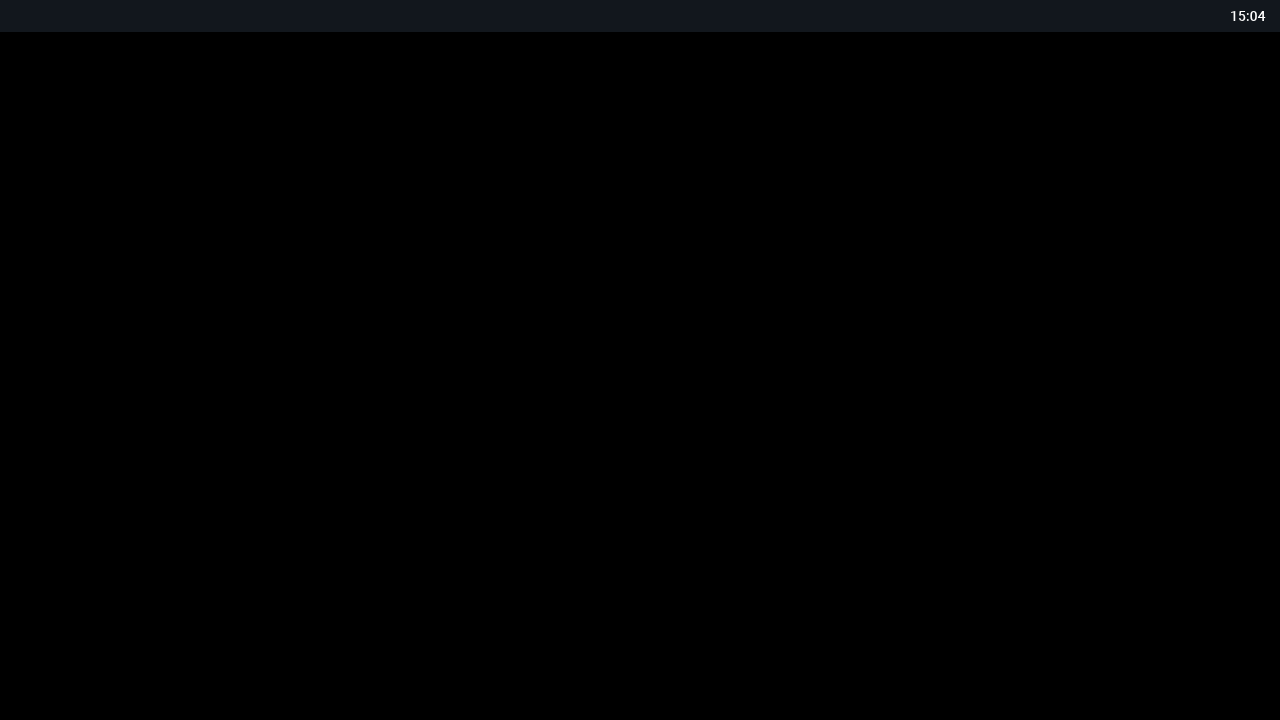
settings.tdl names the Default stylesheet, which gives text and the shipped modules their look. Shells/Main_Shell.tdl is the file the shell looks for first. A Monitor with Index: default covers every monitor. Its Bar sits on the top edge, 32 pixels thick, and holds a FlexBox (a row) with an empty Spacer that pushes the Clock to the right. The Bar's background is $color.surface, a token of the theme and not a fixed colour; step 4 uses that.
Run check, then run. You should see a 32-pixel strip along the top of each monitor with the time as HH:MM at the right, and your windows should start below it. Change "%H:%M" to "%H:%M:%S" and save: the clock changes without a restart.
The detail: Your first Bar, Surfaces, Modules: Clock.
Step 2: a Launcher Panel
You will add a Panel that lists your applications with a search field, shown by a button, by a keyboard shortcut and by a command. Both files change:
File settings.tdl:
---
TDL: 0.2
Name: Settings
---
Settings {
    Appearance { Stylesheets: [Default] }
    # Meta+Space toggles the Panel named Launcher. `tesserae-shell toggle Launcher` does the same.
    Shortcuts { Toggle_Launcher: "Meta+Space" }
}
File Shells/Main_Shell.tdl:
---
TDL: 0.2
Name: Main_Shell
---
# Step 2: the Bar of step 1 gets a button, and the shell gets a Panel named Launcher.
Shell {
    Monitor {
        Name: Main
        Index: default
        Children {
            Bar {
                Name: Top_Bar
                Edge: TOP
                Width: EXPAND
                Height: 32
                Style { Background: $color.surface }
                Children {
                    FlexBox {
                        Width: EXPAND
                        Flex: HORIZONTAL
                        Align_Items: CENTER
                        Padding: [12, 0, 12, 0]
                        Children {
                            Button { Icon: "mdi:magnify", Label: "Applications", On_Click { Action: Toggle, Target: Launcher } }
                            Spacer { }
                            Clock { format: "%H:%M" }
                        }
                    }
                }
            }
            Panel {
                Name: Launcher
                Layer: OVERLAY
                Anchor: [TOP]
                Inset: [0, 80, 0, 0]
                Width: 520
                Height: 460
                Keyboard: EXCLUSIVE
                Visible: false
                Style { Background: $color.surface_raised, Corner_Radius: 12, Elevation: 30% }
                Children { Applications { max_results: 10, icon_size: 28 } }
            }
        }
    }
}
What is new:
- A
PanelnamedLauncher, on theOVERLAYlayer, anchored to the top with 80 pixels of space above it.Visible: falsestarts it hidden, andKeyboard: EXCLUSIVEsends what you type to its search field. It holds anApplicationsmodule. - A
Buttonin the Bar whoseOn_Clicktoggles the Panel by its name. - In
settings.tdl,Shortcuts { Toggle_Launcher: "Meta+Space" }, the global shortcut that toggles the Panel namedLauncher.
Save, then open the Launcher in any of three ways: click the button, press Meta+Space, or run in a terminal
tesserae-shell toggle Launcher
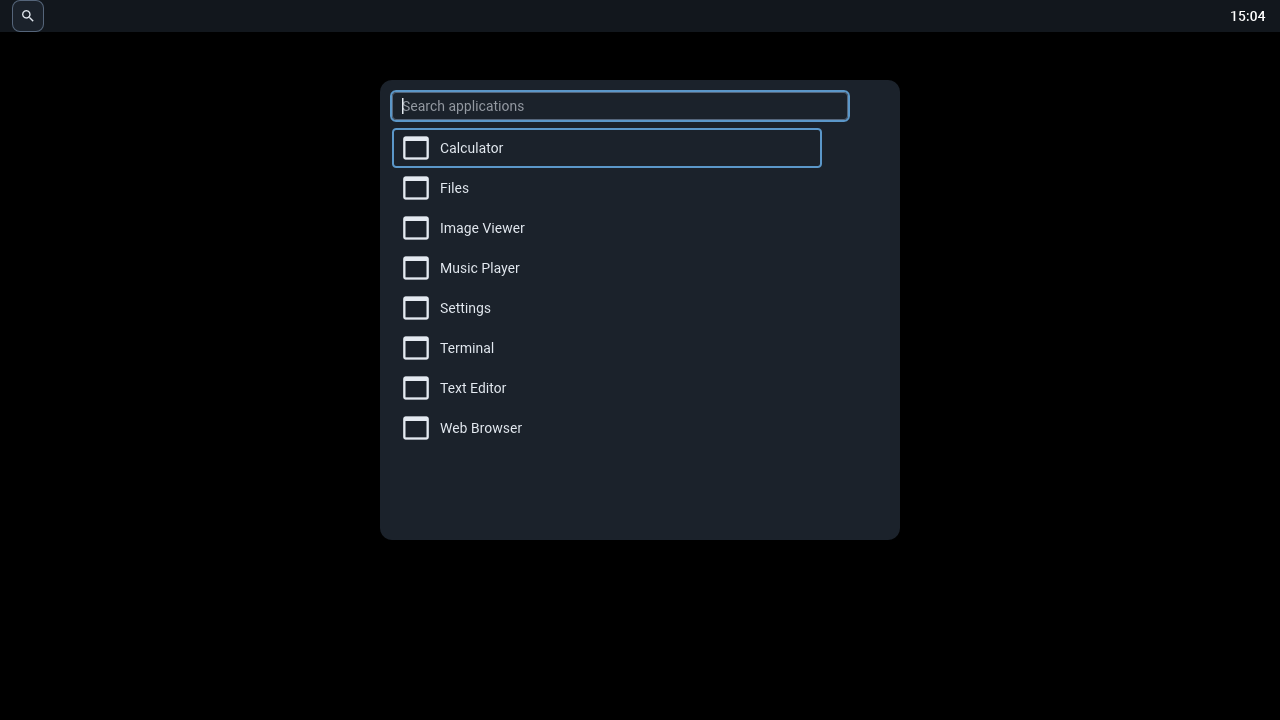
The control commands talk to the running shell over the session bus, so they work from any terminal (and from a key binding of your own). You should see a 520 by 460 pixel Panel below the Bar with a search field and a list of applications, and typing narrows the list. The global shortcut goes through KWin and is not yet checked on KWin in this guide; the button and the command do not depend on it.
The detail: Surfaces: Panel, The Launcher, The command line.
Step 3: a Popup, and the Tray
You will add the system tray to the Bar and a Popup of your own, opened by a button, that holds the volume, the network and the battery. One file changes:
File settings.tdl:
---
TDL: 0.2
Name: Settings
---
Settings {
    Appearance { Stylesheets: [Default] }
    # Meta+Space toggles the Panel named Launcher. `tesserae-shell toggle Launcher` does the same.
    Shortcuts { Toggle_Launcher: "Meta+Space" }
}
File Shells/Main_Shell.tdl:
---
TDL: 0.2
Name: Main_Shell
---
# Step 3: a Tray in the Bar (its menus are Popups the shell provides) and a Popup of your own.
Shell {
    Monitor {
        Name: Main
        Index: default
        Children {
            Bar {
                Name: Top_Bar
                Edge: TOP
                Width: EXPAND
                Height: 32
                Style { Background: $color.surface }
                Children {
                    FlexBox {
                        Width: EXPAND
                        Flex: HORIZONTAL
                        Align_Items: CENTER
                        Spacing: 12
                        Padding: [12, 0, 12, 0]
                        Children {
                            Button { Icon: "mdi:magnify", Label: "Applications", On_Click { Action: Toggle, Target: Launcher } }
                            Spacer { }
                            Tray { icon_size: 18, spacing: 6 }
                            Button { Icon: "mdi:tune", Label: "Quick", On_Click { Action: Show, Target: Quick } }
                            Clock { format: "%H:%M" }
                        }
                    }
                }
            }
            Panel {
                Name: Launcher
                Layer: OVERLAY
                Anchor: [TOP]
                Inset: [0, 80, 0, 0]
                Width: 520
                Height: 460
                Keyboard: EXCLUSIVE
                Visible: false
                Style { Background: $color.surface_raised, Corner_Radius: 12, Elevation: 30% }
                Children { Applications { max_results: 10, icon_size: 28 } }
            }
            Popup {
                Name: Quick
                Attach: BOTTOM
                Alignment: END
                Gap: 4
                Max_Width: 280
                Style { Background: $color.surface_raised, Corner_Radius: 8, Elevation: 20% }
                Children {
                    FlexBox {
                        Flex: VERTICAL
                        Padding: 12
                        Spacing: 10
                        Children {
                            Audio { show_percent: true, show_slider: true }
                            Network { show_name: true }
                            Battery { }
                        }
                    }
                }
            }
        }
    }
}
What is new:
Trayshows one icon for each application that registers a StatusNotifierItem. A click activates the application; a secondary click opens its menu, which the shell draws in its own PopupsTray_Menu,Tray_Menu_2andTray_Menu_3. You write none of them. The shell is a second tray host beside Plasma's, so the same icons can show in both.- A
PopupnamedQuick.Attach: BOTTOMputs it under the block that opened it andAlignment: ENDlines its right edge up with that block. It is as large as its content, up toMax_Width. The button that opens it saysOn_Click { Action: Show, Target: Quick }. A click outside the Popup, or Escape, closes it. - Inside it, a column with
Audioand its slider,NetworkandBattery.Batteryhides itself when the machine has no battery, andNetworkwhen NetworkManager is absent.
You should see the tray icons and a tune button left of the clock, and the button opens a small raised card under it. A command never opens a Popup, because a Popup needs the click that opened it: tesserae-shell show Quick is refused.
The detail: Surfaces: Popup, Modules: Tray, Audio, Network, Battery.
Step 4: a style of your own
You will give the shell its own colours in a dark and a light look, and a rule that styles one block. Two files are new and two change:
File settings.tdl:
---
TDL: 0.2
Name: Settings
---
Settings {
    Appearance {
        Theme: Mine
        Stylesheets: [Default, Mine]
        Follow_Desktop: true
    }
    Shortcuts { Toggle_Launcher: "Meta+Space" }
}
File Shells/Main_Shell.tdl:
---
TDL: 0.2
Name: Main_Shell
---
# Step 4: the same shell, with the clock in a chip.
Shell {
    Monitor {
        Name: Main
        Index: default
        Children {
            Bar {
                Name: Top_Bar
                Edge: TOP
                Width: EXPAND
                Height: 32
                Style { Background: $color.surface }
                Children {
                    FlexBox {
                        Width: EXPAND
                        Flex: HORIZONTAL
                        Align_Items: CENTER
                        Spacing: 12
                        Padding: [12, 0, 12, 0]
                        Children {
                            Button { Icon: "mdi:magnify", Label: "Applications", On_Click { Action: Toggle, Target: Launcher } }
                            Spacer { }
                            Tray { icon_size: 18, spacing: 6 }
                            Button { Icon: "mdi:tune", Label: "Quick", On_Click { Action: Show, Target: Quick } }
                            FlexBox {
                                Class: chip
                                Padding: [10, 4, 10, 4]
                                Children { Clock { format: "%H:%M" } }
                            }
                        }
                    }
                }
            }
            Panel {
                Name: Launcher
                Layer: OVERLAY
                Anchor: [TOP]
                Inset: [0, 80, 0, 0]
                Width: 520
                Height: 460
                Keyboard: EXCLUSIVE
                Visible: false
                Style { Background: $color.surface_raised, Corner_Radius: 12, Elevation: 30% }
                Children { Applications { max_results: 10, icon_size: 28 } }
            }
            Popup {
                Name: Quick
                Attach: BOTTOM
                Alignment: END
                Gap: 4
                Max_Width: 280
                Style { Background: $color.surface_raised, Corner_Radius: 8, Elevation: 20% }
                Children {
                    FlexBox {
                        Flex: VERTICAL
                        Padding: 12
                        Spacing: 10
                        Children {
                            Audio { show_percent: true, show_slider: true }
                            Network { show_name: true }
                            Battery { }
                        }
                    }
                }
            }
        }
    }
}
File Themes/Mine_Theme.tdl:
---
TDL: 0.2
Name: Mine
---
# Only what differs from the Default theme. The base values are the dark look; Modes.Light
# changes them when the desktop is in its light colour scheme.
Theme {
    Color {
        Surface: "#14211f"
        Surface_Raised: "#1f332f"
        Primary: "#5fd3b4"
        On_Primary: "#06201a"
        Accent: DESKTOP
    }
    Modes {
        Light {
            Color {
                Surface: "#eef7f4"
                Surface_Raised: "#ffffff"
                On_Surface: "#13241f"
                Primary: "#0f7a62"
                On_Primary: "#ffffff"
            }
        }
    }
}
File Stylesheets/Mine_Stylesheet.tdl:
---
TDL: 0.2
Name: Mine
---
# The look of the blocks that carry Class: chip, taken from the theme's tokens, so it follows
# light and dark with the theme.
Stylesheet {
    Rule { Selector: ".chip", Background: $color.surface_raised, Corner_Radius: $shape.full }
    Rule { Selector: ".chip:hovered", Background: $color.primary }
}
What is new:
Themes/Mine_Theme.tdlholds only the tokens that differ from theDefaulttheme; the rest come from there. The values at the top are the dark look, andModes { Light { ... } }overrides them for the light colour scheme.Accent: DESKTOPmakes the accent colour follow the desktop's.Stylesheets/Mine_Stylesheet.tdlhas two rules for blocks withClass: chip, written from tokens ($color.surface_raised,$shape.full), so they follow the mode too.settings.tdlnames both:Theme: Mine,Stylesheets: [Default, Mine](lowest priority first) andFollow_Desktop: true, so the shell follows the desktop live.- In the shell file the clock sits in a
FlexBoxwithClass: chip. A class goes on a block, not on a module call such asClock, so the chip is the box around the clock.
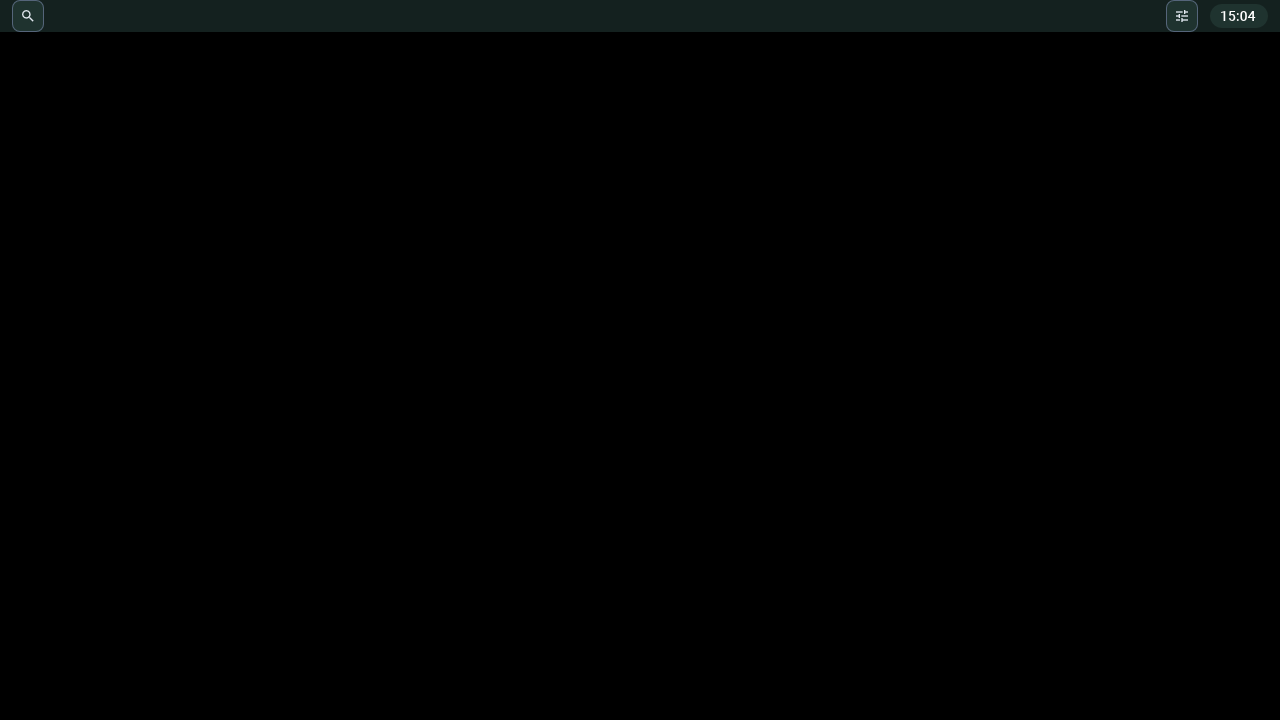
You should see the Bar and the Panels in dark green with a mint primary colour, and the clock in a pill that fills with the primary colour under the pointer. Switch Plasma between its light and dark colour scheme and the shell follows without a restart. (Changing Follow_Desktop itself needs a restart.)
The detail: Styling and themes: the token tables, modes, selectors and style keys.
Step 5: a module of your own
You will write Uptime, a module that shows how long the machine has been up, read again every minute and on a click. A module is a layout in Uptime_Module.tdl and the Python beside it in Uptime_Module.py, both in Modules/Uptime/; its optional look is a style file in Styles/. The shell file gets one new line (Uptime { label: "up" } beside the clock):
File settings.tdl:
---
TDL: 0.2
Name: Settings
---
Settings {
    Appearance {
        Theme: Mine
        Stylesheets: [Default, Mine]
        Follow_Desktop: true
    }
    Shortcuts { Toggle_Launcher: "Meta+Space" }
}
File Shells/Main_Shell.tdl:
---
TDL: 0.2
Name: Main_Shell
---
# Step 5: the same shell, with your own module, Uptime, beside the clock.
Shell {
    Monitor {
        Name: Main
        Index: default
        Children {
            Bar {
                Name: Top_Bar
                Edge: TOP
                Width: EXPAND
                Height: 32
                Style { Background: $color.surface }
                Children {
                    FlexBox {
                        Width: EXPAND
                        Flex: HORIZONTAL
                        Align_Items: CENTER
                        Spacing: 12
                        Padding: [12, 0, 12, 0]
                        Children {
                            Button { Icon: "mdi:magnify", Label: "Applications", On_Click { Action: Toggle, Target: Launcher } }
                            Spacer { }
                            Tray { icon_size: 18, spacing: 6 }
                            Button { Icon: "mdi:tune", Label: "Quick", On_Click { Action: Show, Target: Quick } }
                            Uptime { label: "up" }
                            FlexBox {
                                Class: chip
                                Padding: [10, 4, 10, 4]
                                Children { Clock { format: "%H:%M" } }
                            }
                        }
                    }
                }
            }
            Panel {
                Name: Launcher
                Layer: OVERLAY
                Anchor: [TOP]
                Inset: [0, 80, 0, 0]
                Width: 520
                Height: 460
                Keyboard: EXCLUSIVE
                Visible: false
                Style { Background: $color.surface_raised, Corner_Radius: 12, Elevation: 30% }
                Children { Applications { max_results: 10, icon_size: 28 } }
            }
            Popup {
                Name: Quick
                Attach: BOTTOM
                Alignment: END
                Gap: 4
                Max_Width: 280
                Style { Background: $color.surface_raised, Corner_Radius: 8, Elevation: 20% }
                Children {
                    FlexBox {
                        Flex: VERTICAL
                        Padding: 12
                        Spacing: 10
                        Children {
                            Audio { show_percent: true, show_slider: true }
                            Network { show_name: true }
                            Battery { }
                        }
                    }
                }
            }
        }
    }
}
File Modules/Uptime/Uptime_Module.py:
"""Uptime: a module of your own. The class name is the module's Name."""

from __future__ import annotations

from tess_shell import Event, Module, action


def read_uptime() -> str:
    """How long the machine has been up, from /proc/uptime, as '3h 07m' or '12m'."""
    with open("/proc/uptime") as f:
        minutes = int(float(f.read().split()[0]) // 60)
    hours, minutes = divmod(minutes, 60)
    return f"{hours}h {minutes:02d}m" if hours else f"{minutes}m"


class Uptime(Module):
    def start(self) -> None:
        self.refresh_now()
        self.ctx.on_tick("minute", self.refresh_now)

    def refresh_now(self) -> None:
        self.ctx.send("uptime", read_uptime())  # every use of the module gets it

    @action
    def refresh(self, event: Event) -> None:
        # Run by a click on the module: On_Click { Action: Call, Target: "Uptime.refresh" }
        self.refresh_now()
File Modules/Uptime/Uptime_Module.tdl:
---
TDL: 0.2
Name: Uptime
---
# params say what a use may set; the block tree shows what the Python sends, in <| ... |>.
Module {
    Style: ../../Styles/Uptime_Style.tdl

    Params {
        label { Type: string, Default: "up" }
    }
    FlexBox {
        Flex: HORIZONTAL
        Spacing: 4
        On_Click { Action: Call, Target: "Uptime.refresh" }
        Children {
            Text { Class: uptime_text, Text: <| params.label + " " + uptime |> }
        }
    }
}
File Themes/Mine_Theme.tdl:
---
TDL: 0.2
Name: Mine
---
# Only what differs from the Default theme. The base values are the dark look; Modes.Light
# changes them when the desktop is in its light colour scheme.
Theme {
    Color {
        Surface: "#14211f"
        Surface_Raised: "#1f332f"
        Primary: "#5fd3b4"
        On_Primary: "#06201a"
        Accent: DESKTOP
    }
    Modes {
        Light {
            Color {
                Surface: "#eef7f4"
                Surface_Raised: "#ffffff"
                On_Surface: "#13241f"
                Primary: "#0f7a62"
                On_Primary: "#ffffff"
            }
        }
    }
}
File Stylesheets/Mine_Stylesheet.tdl:
---
TDL: 0.2
Name: Mine
---
# The look of the blocks that carry Class: chip, taken from the theme's tokens, so it follows
# light and dark with the theme.
Stylesheet {
    Rule { Selector: ".chip", Background: $color.surface_raised, Corner_Radius: $shape.full }
    Rule { Selector: ".chip:hovered", Background: $color.primary }
}
File Styles/Uptime_Style.tdl:
---
TDL: 0.2
Name: Uptime_Style
---
# The module's own look: a class its layout uses. A rule of your stylesheet still wins over it.
Style {
    Classes {
        uptime_text {
            Kind: Text
            Font_Size: 13
            Font_Weight: 500
        }
    }
}
Read the files from the Python outward:
- The class
Uptimehas the module's name.startruns once.self.ctx.on_tick("minute", fn)callsfnat the start of every minute, andself.ctx.send("uptime", text)sends a value to every use of the module under the keyuptime.@actionmarksrefreshas something the layout can call. - In
Uptime_Module.tdl,Paramslists what a use may set. The block tree shows what the Python sends:<| params.label + " " + uptime |>is a slot that reads the param and the sent value and is kept up to date. TheFlexBox'sOn_Click { Action: Call, Target: "Uptime.refresh" }runs the action. Style:names the module's own look file, relative to the module file, and the file defines the classuptime_text. A rule in one of your stylesheets still wins over it.
Save the files. You should see text like up 3h 07m (your own value; 12m when the machine has been up less than an hour) just left of the clock chip, and a click on it reads the value again. The shell starts your module's Python in a process of its own, so a module that hangs or crashes cannot freeze the bar; the value can appear a moment after the bar's first paint. That process runs with your rights and is not a sandbox (Trust and security): write your own, or read one before you add it.
The detail: A configuration folder with a module of your own. The design notes hold the full contract (Module File).
Where to go next
- Put the folder at
~/.config/tesserae-shell/and start the shell with your session (Install and start). - Every module the shell ships, with its parameters: Modules. Every setting:
settings.tdl. - When something does not appear: Troubleshooting.